The Monday-morning test
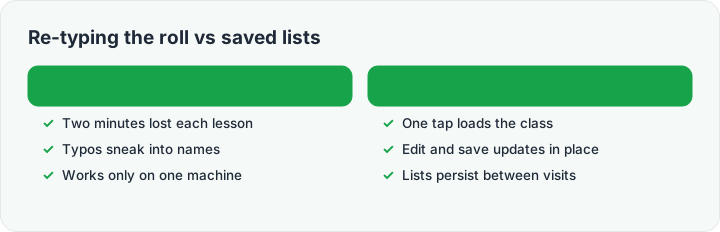
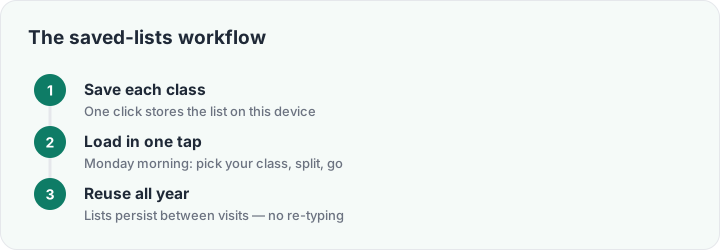
Most group generators treat your class list as disposable: type thirty names, split, refresh, gone. By Tuesday you are typing them again. This page is the fix — the group maker's saved-lists bar sits right under the tool. Save the list once (name it "7B Science"), and from then on it is a one-tap load: pick the class, choose the groups, split. The lists live in this browser on this device — no account, no upload, and they survive closed tabs, restarts and the weekend.
The workflow that clicks with teachers: save each class at the start of term, keep the tab pinned on the classroom machine, and grouping becomes a ten-second transition instead of a two-minute typing exercise. Update the roll? Edit the list and hit save — the saved copy updates on the spot.
Same engine, classroom-tuned defaults
Under the hood this is the same split engine as the home page — number of groups or fixed size, gender balancing with (f)/(m) markers, shuffle again for a fresh mix, present full screen for the projector, print for the wall. The difference is workflow: this page is optimized for teachers who split groups every day across several classes, with the list library one click away instead of nowhere.
If your groups feed a longer activity, pair the split with the classroom timer for work phases and the wheel for who reports back first — the four tools cover the whole group-work arc of a lesson.